
There’s nothing more panic-inducing then a black screen on your Peloton. It’s like you’ve just blown hundreds of dollars on an expensive piece of gear, only to find that it’s showing you a dead screen in return. Your workout window begin to tick down and there you are: looking into the empty face of a silent bike (or Tread).
The reaction is instant, “How can this be happening?!”, but the solution are typically straightforward. A software bug, a tripped breaker, or a loose cable. Those is the most common culprit.
Don’t grab the phone just yet. Before you contact support, here are seven things you should of try yourself. They addresses the most frequent failure points on both Bike+ and Original.
Seven Quick Fixes For Peloton Screen Issues
Check the Power Outlet and Cable
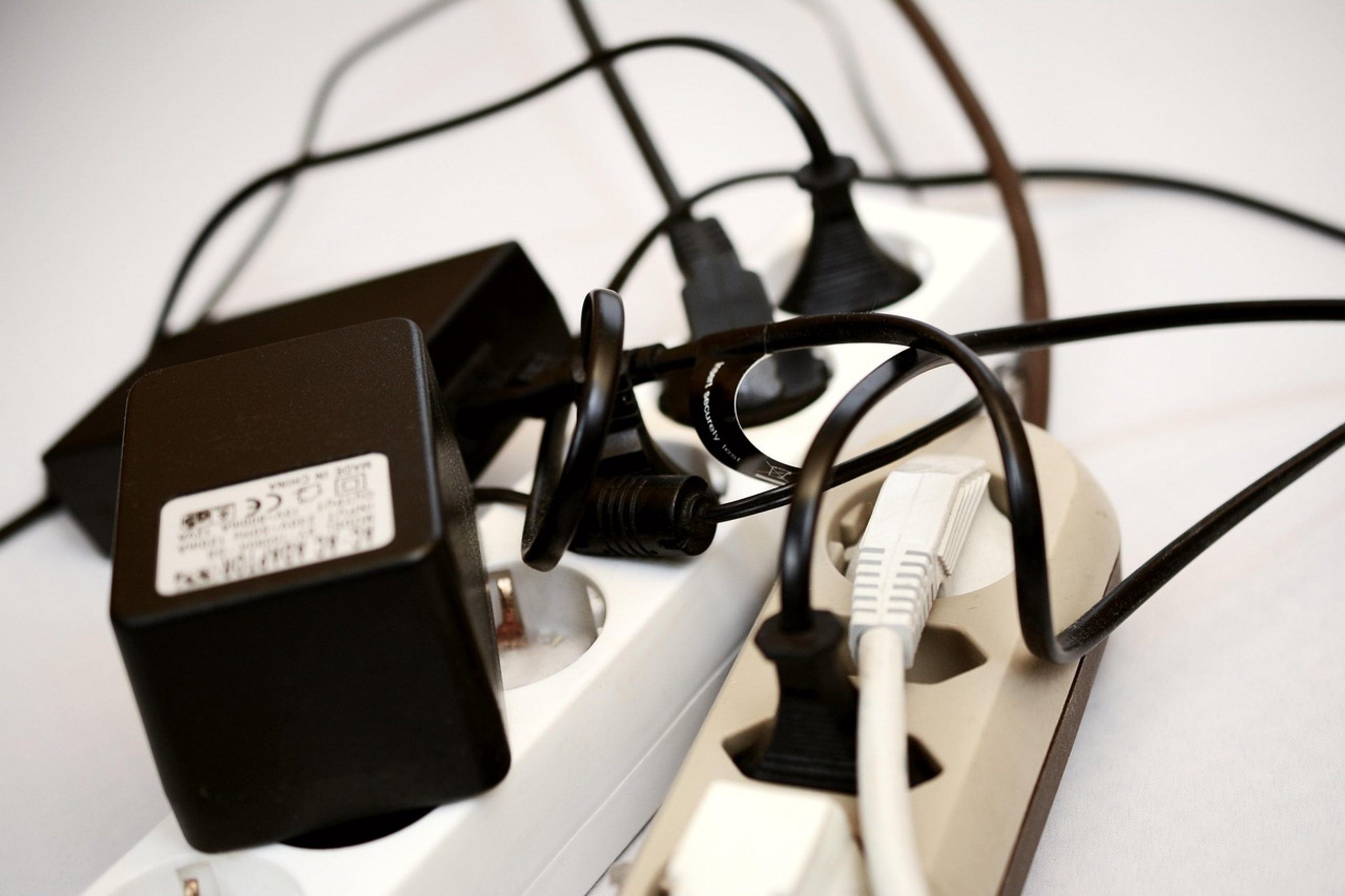
The first thing is the power source. The first thing you thinks of, right? But it’s number one on list of culprits.
What outlet are you trying to plug it into? Plug a lamp into that same outlet. Does it work?
If the lamp doesn’t work, your Peloton isn’t the problem; you just need a new socket. Not you. New socket.
Does it work? Then let’s look at the power cable itself. Is there any damage?
Make sure it’s securely seated both in the wall and on the bike. A loose connection can be all it takes to completely cut the power. Takes ten seconds, saves you an hour of troubleshooting.
Perform a Hard Reset
Then do a hard reset. Do not simply turn off your screen. Turn off all power.
Remove the unit from the wall. Let it sit for 30 seconds and that clears out the system’s temporary memory and lets the capacitors drain. Plug it back in and watch for the peloton logo.
It should boot up. If it does, you had a software hang. If not, move on to next step.
Do not skip the wait time because that’s what makes the reset work. Make sure you’re on wifi. The Peloton will not work correctly without internet.
Verify Wi-Fi Connection and Router
The screen might turn on but the classes may not load. On the screen, look in the lower-right-hand corner. There should be an exclamation point there if you’re not connect.
Reset your router. It’s a general solution but it works. Most of the time, there is nothing wrong with the bike.
Your home network is just dropping packets and a quick reset of your modem clears that up. Check the power strip. Was your surge protector tripped?
Inspect the Surge Protector
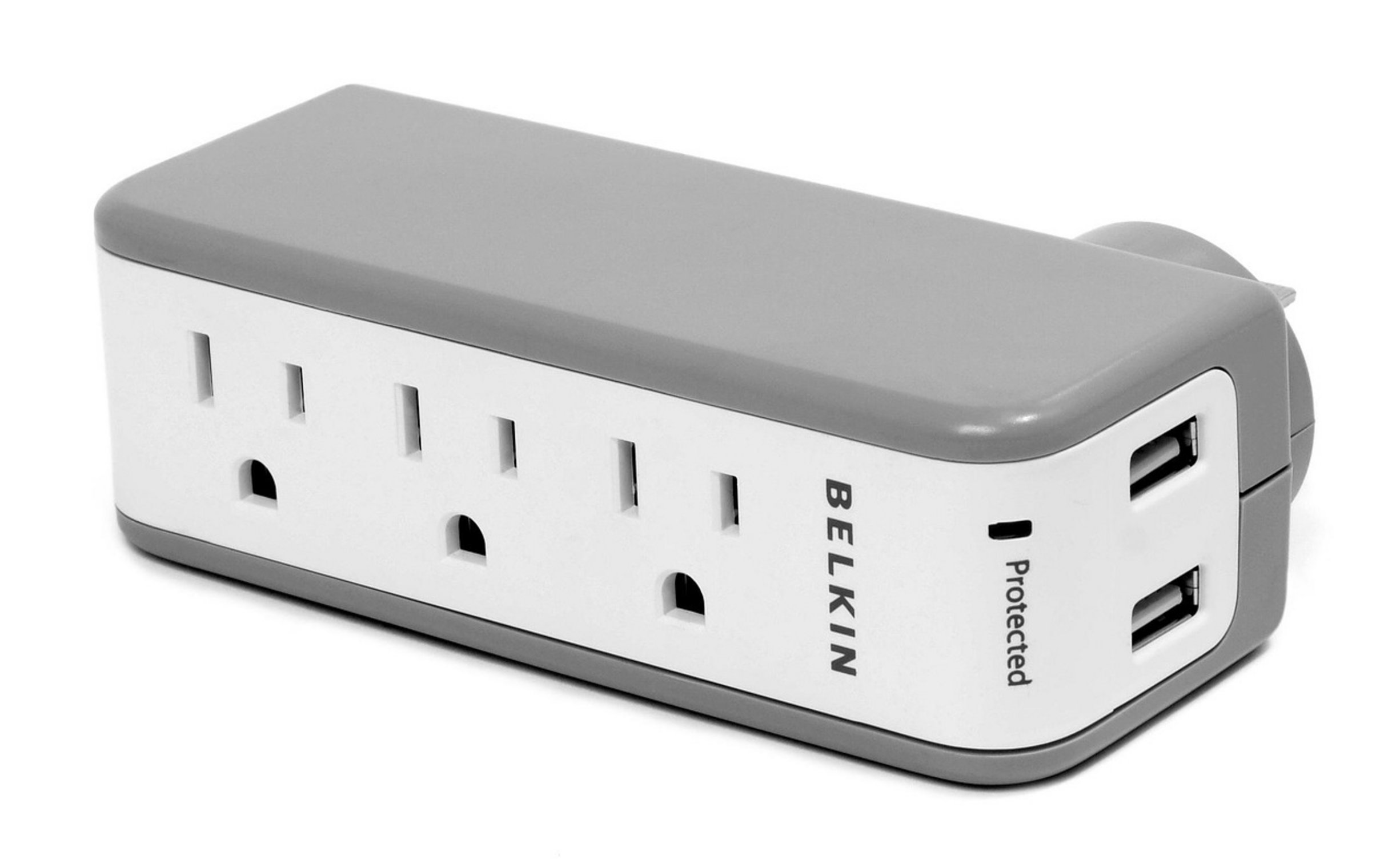
A surge protector will turn off if there’s a spike detected. Look for the reset button on the strip (it’s small and can be missed). Push it.
Try powering up the bike again. This is an easy mistake people makes. They think other items on their strip are receiving power so the peloton must be as well.
But safety feature could have kicked in for the high draw Peloton unit. See that screen hinge? On the Bike model, the screen has a cable running into it from the hinge.
Tighten the Screen Hinge
When your screen doesn’t sit snug and feels loose, the cable could also is loose. The screw that holds the screen in place should be tighten up. That will seat the ribbon cable inside correctly.
If it is loose there, you will get static or a complete blackout. The electrical problem are fixed mechanically. How old is the unit?
Check Batteries and Hardware
Remote and internal batteries gets worn down over time. Replace any battery-operated remote batteries. Sometimes a weak signal confuse the system.
Internal parts also get worn down if the unit’s been around awhile. It is time for a hardware diagnostic. No more guesswork here, it’s time to make plans to get it repaired.
It is not a fix, but a step that has to be taken. Last, check for updates. Occasionly the system tries to update but then something happens and it can’t.
Force a System Update Reboot
The system won’t boot up until you force a reboot and let it finish installing the update. Don’t mess with it, just be patient. These seven steps covers most of what you’ll need to do to fix things.
Chances are good the bike is just fine; it’s your path from the screen back to the wall that had a hiccup. You should of checked the moddern connection first. It was more difficult than I thought.